DeskSpace
You clear the keyboard away to open a notebook, bring a laptop home, or move from work to a personal device. Those small transitions often reveal more about the connection you need than a tidy product photograph does.
True wired input makes sense when you want keystrokes to travel through a cable to the computer. Wireless is worth considering when removing that connection from the keyboard's movements or switching between permitted devices serves a real task. The trade-off includes managing the actual wireless connection and the keyboard's power routine.
Check the input path before choosing. A keyboard can remain wireless while a cable charges it. Being plugged in is not proof that it can type through USB.
Decide where the typing needs to go
Begin with the computer or other device you want to control. Identify its permitted input connections and the ports actually available in your setup, including any dock or adapter you intend to use. A free-looking socket is not the same as a confirmed compatible path.
For a managed work computer, check the organization's requirements before buying. Do not assume that Bluetooth, a receiver, browser configuration or software installation will be allowed simply because the keyboard supports it.
Then describe your ordinary arrival at the desk. Does the keyboard stay connected to a workstation? Does a laptop leave regularly? Do you switch to another device during the day? These are different routines. Choose the connection that serves the routine you have rather than collecting modes that have no job.
Separate wired typing from charging
Look for an explicit statement that USB carries keyboard input. A charging port, an included cable or the ability to type while charging does not establish that function.
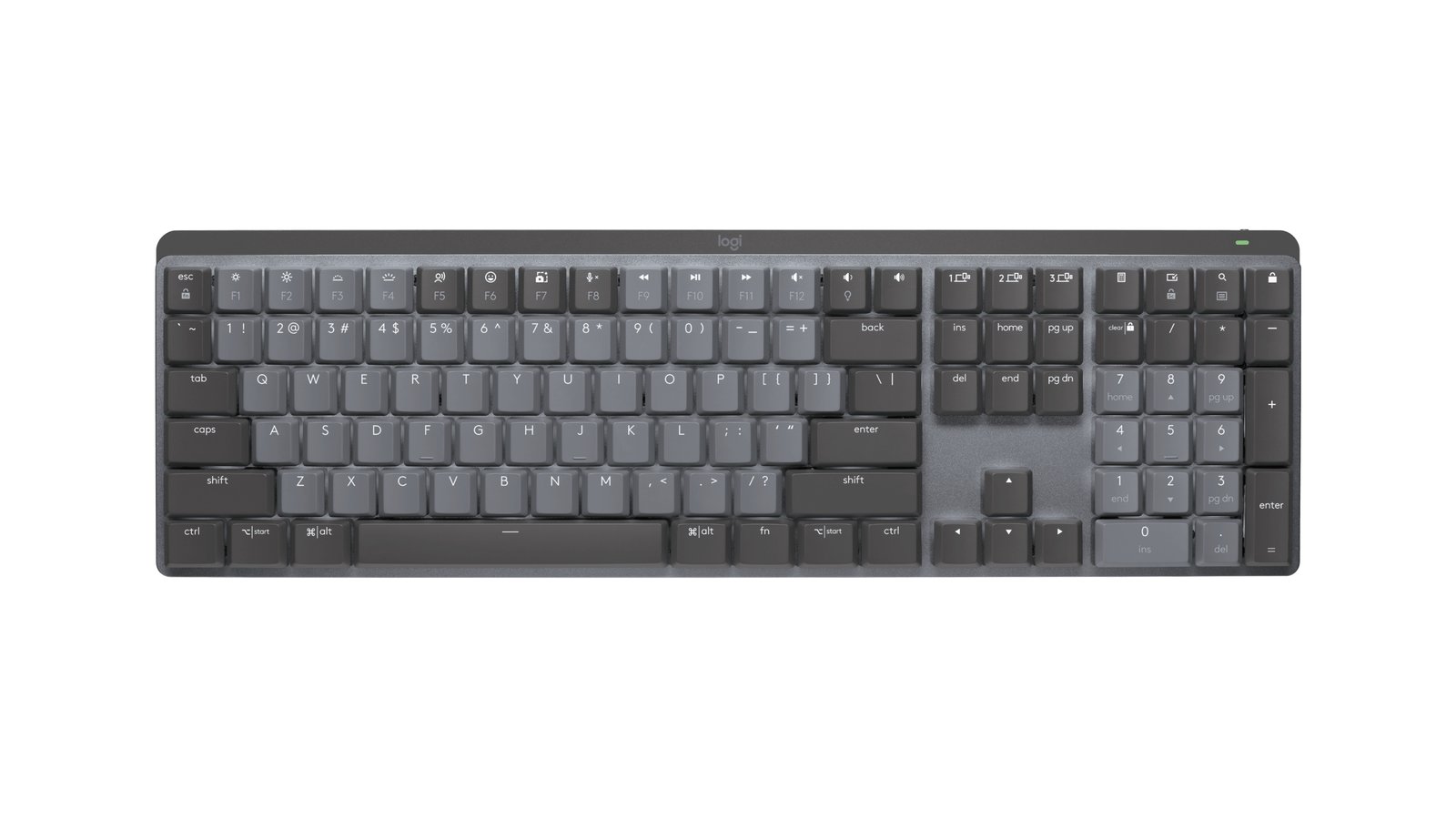
The official Logitech MX Mechanical setup guide makes this distinction clear in its charging instructions: the cable charges the keyboard, while typing continues over its wireless connection. Plugging it in therefore does not make it a wired-input keyboard.
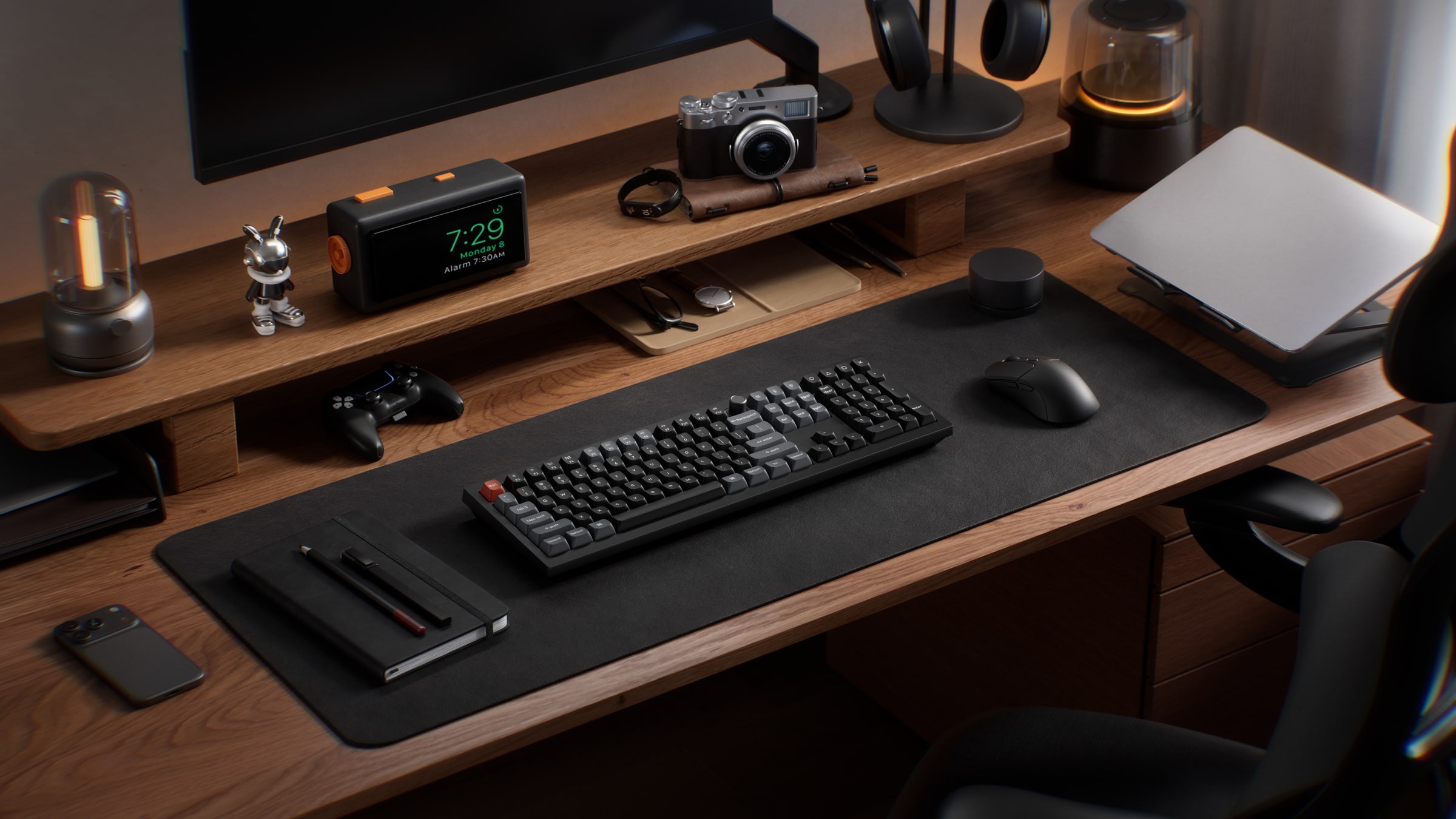
By contrast, Keychron's official V6 Ultra 8K product page describes wired input alongside receiver and Bluetooth modes. These examples show why the exact documentation matters. They do not represent every keyboard sold as wired, wireless or rechargeable.
If you need to type without a wireless connection, reject charging-only USB as a substitute. Confirm that requirement before considering the appearance or convenience of a particular model.
Give the cable a place in the work
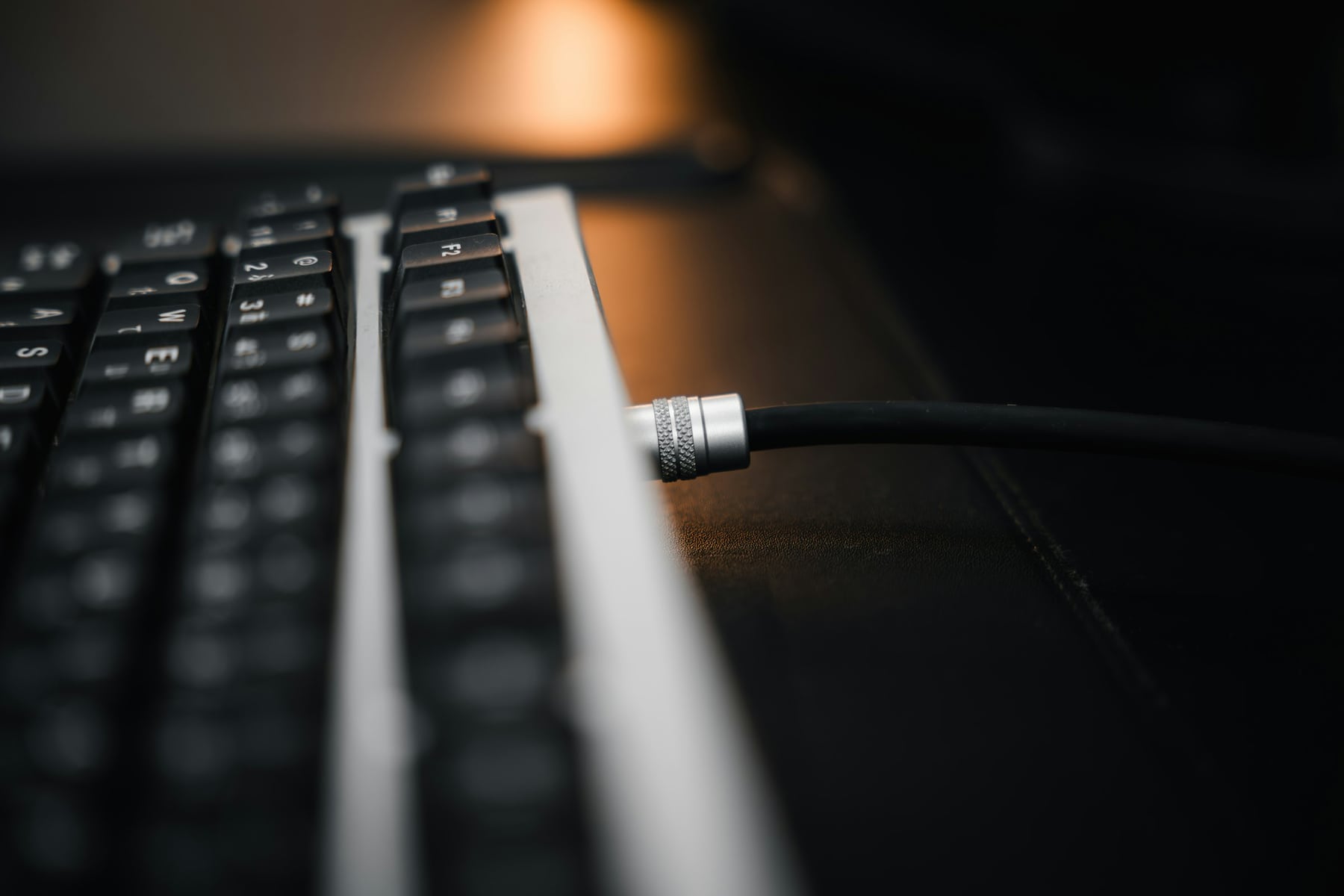
A wired arrangement still needs to accommodate ordinary keyboard movement. Consider where the cable enters, how it reaches the computer and what happens when you move the keyboard to use a notebook. Follow the equipment's connection instructions and avoid routing that pulls at a connector.
There may be little reason to remove a cable from a keyboard that stays in one place. Equally, regularly clearing the typing area might give a wireless arrangement a useful purpose. Judge the movement you repeat, rather than assuming an uncluttered photograph describes your day.
Wireless does not necessarily remove cables from the setup. A rechargeable keyboard still needs an accessible charging connection. One powered by replaceable batteries needs its own replacement routine. Check the exact model instead of transferring either arrangement to the whole category.
Distinguish Bluetooth from a wireless receiver
Bluetooth and a manufacturer's receiver are different connection routes. Confirm which the exact keyboard and destination device support, and whether the required receiver or adapter is part of the intended setup. Do not assume receivers from different systems are interchangeable.
A receiver also needs somewhere to connect when it is in use. A Bluetooth arrangement needs a compatible, permitted Bluetooth connection. Removing the cable from the keyboard does not remove those requirements from the computer.
If switching devices is the attraction, check the documented switching method and which device will receive your next keystrokes. Logitech's current US MX Mechanical page describes its device-switching feature. That is a feature of that model, not a promise that every wireless keyboard can change destinations in the same way.
Walk through a work-to-personal handover
Imagine a reader who uses a work laptop during the day and a personal device later. The reader first confirms the connections permitted on the work machine. Only then do they compare keyboards that can reach both destinations by an acceptable route.
For a wireless candidate, they identify the switching method, the receiver's location if needed and when charging would happen. For a wired candidate, they consider how the cable would be moved between the actual inputs. If a keyboard offers both types, each intended mode still needs confirmation.
The answer can change when the work machine has restrictions. A feature that is useful at home may contribute nothing to the work setup. This imagined handover is a planning exercise, not a test of connection reliability, security or reconnection behavior.
Check the routine before keeping the purchase
During an available assessment period, use the actual permitted setup for ordinary typing, moving away from the desk and returning. Confirm the selected destination before entering sensitive text. If waking or reconnecting matters to your routine, check it on that setup rather than treating the connection label as a guarantee.
Separate ordinary input from optional configuration. Keychron documents a supported-browser and wired-mode requirement for Launcher configuration on the V6 Ultra 8K; that does not mean the configuration tool is required for everyday typing. Confirm any needed customization access separately.
Keep layout and connection as separate choices
Keep the current keyboard when its connection already serves the work. If moving the mouse or accessing particular keys is the real issue, the full-size versus compact guide addresses that different decision.
If the remaining question concerns either example above, continue with the MX Mechanical guide or V6 Ultra 8K guide. Choose the permitted input path first, then assess the exact keyboard's layout and controls. No connection category establishes better typing by itself.
Sources and review scope
The official Logitech US and Keychron Global & US pages linked here were read November 2, 2026. Model examples explain documented differences; they are not category-wide performance claims or product recommendations. DeskSpaceLab has not tested these connection routines or verified an employer's device policy.
About this guide: An editorial planning profile, not a medical professional. Turns workspace questions into measurements, layout decisions and practical buying sequences. Editorial profile
Keep planning your workspace.
Use the sources and related guides to choose your next step.
Explore buying guides →